

Rotary Connected Instructions
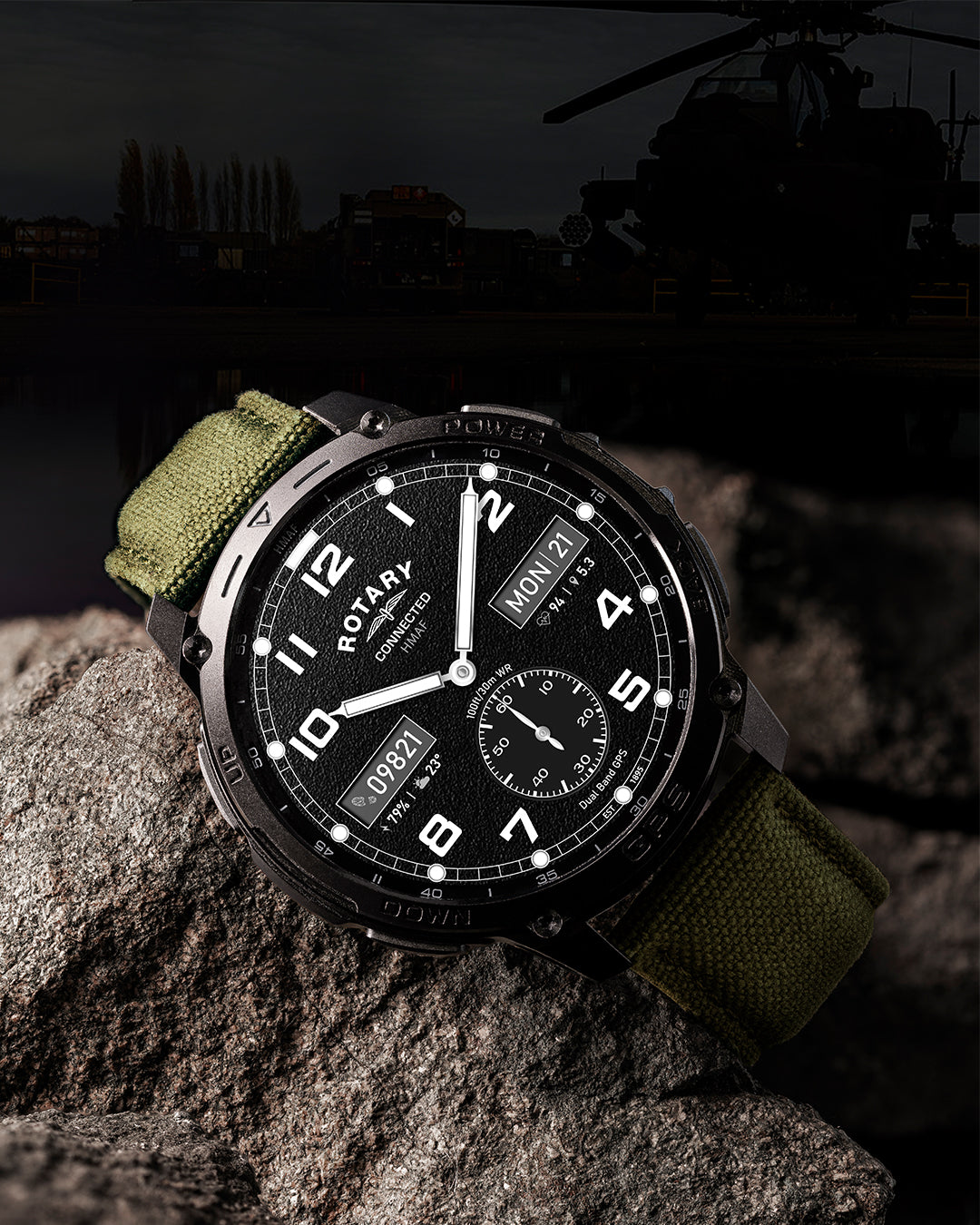
Rotary x MOD Connected
DOWNLOAD INSTRUCTIONS
Rotary COnnected
DOWNLOAD INSTRUCTIONSNeed help with your Rotary connected device?
Frequently Asked Questions
Calling Functionality
This watch comes with a Bluetooth calling feature. You can make calls without having to unlock the phone. You can also view your call history. The connection between the watch and your phone will need to be kept stable when using the calling function. The watch also has a microphone and a built in speaker for use when making phone calls, listening to music and other notifications.
After connecting the watch to the Rotary Smart app, you need to go to the Bluetooth settings of the phone and pair the watch. Switch on Bluetooth in your phones Bluetooth settings and you should see the available devices. Tap on the device name and accept the Bluetooth pairing request. To have full functionality we recommend allowing permissions. Once connected you should see that the device is “connected for calls”.
Go to your watch and swipe left to the features page and locate the phone function. There are three tabs on this screen:
• Recent calls
• Dial pad
• Contacts
If you tap on the recent calls tab you can see the recent calls on your device. When you tap on the dial pad you can then dial a number to call. Once you have dialed the number the call button on the bottom right corner will appear. Once you tap on the call button the number will then be called.
• You can speak through the in built microphone on your watch.
• To adjust the speaker volume tap on the + or -
• To end the call tap on the red phone icon Incoming Call When Bluetooth calling mode is activated the watch will ring and vibrate. You can answer or reject the call.
Please note: Internet calls such as Whatsapp will show as notification only.
You can contact us through our contact page! We will be happy to assist you.
You can add up to 8 contacts on your watch. Add contacts from the Rotary Smart app. To add contacts go to “Favourite Contacts” and add contacts. The selected contacts will then be synced to your watch. On the Rotary Smart app tap on “Favourite Contacts” to add your contacts. Select the contacts you would like to add and save.
Switch between watch / phone during an active call: If your watch is connected to your phone via Bluetooth, all calls will show up on the watch by default. If during an active call you would like to switch to your phone, simply tap on the handset earpiece icon to select it. The call will then switch to your phone.
General
Some phones use RCS (Rich Communication Services) to send text messages, which utilises internet to send the messages. To allow notifications for text messages, please turn off this option by following the below steps.
- In your phone, open messages.
- Open your profile settings.
- Navigate to messages settings.
- Select RCS Chats.
- Switch off RCS chats.
This feature allows you to save your favourite QR scans for ease of access, QR codes may include your shopping loyalty cards. Follow the below steps to get started.
- Take a photo on your phone of the QR code you wish to use.
- Edit the photo so it only contains the QR code.
- Access the E-Card feature within your app and select upload.
- Click on the arrow next to the QR code to access your photo gallery and select the relevant QR code.
- You will see the QR code ready to upload, please note you must enter a title, this cannot be blank, click save.
- You will then note the QR/E-Card on your app.
- You can now access the QR code via your watch.